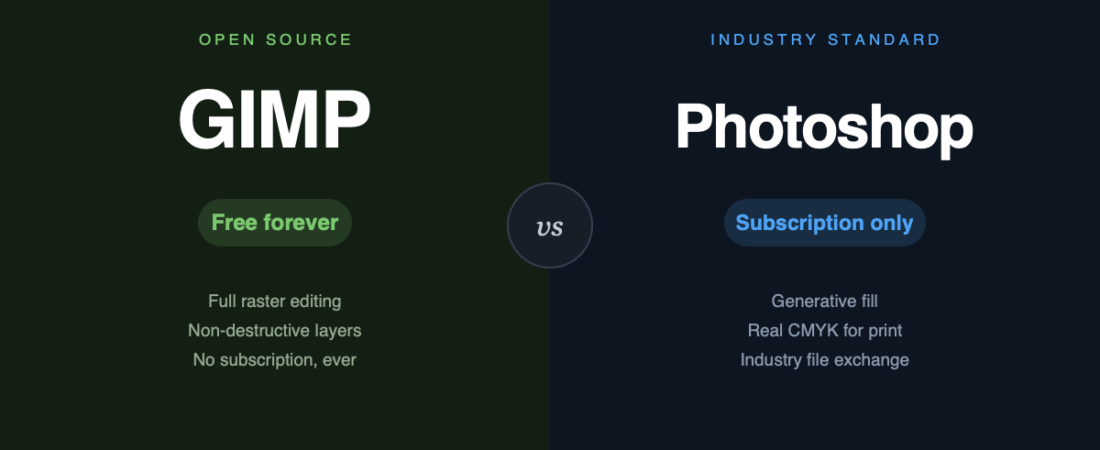
“Just use GIMP, it’s the free Photoshop” is advice that has been given confidently for twenty years and has been quietly wrong for most of them. GIMP 3 changed enough that it deserves a fresh look — but the honest answer still depends entirely on what you make.
Key takeaways
- GIMP is enough for screen work including photo cleanup, compositing, textures, mockups, social assets, and UI graphics.
- Photoshop remains required for commercial print, generative AI retouching, and reliable studio file exchange.
- GIMP 3 adds live filters, a rebuilt interface, AdobeRGB support, and wider file format handling.
- GIMP still lacks native CMYK, spot colour channels, and reliable soft-proofing for commercial print workflows.
- Photoshop costs $22.99 monthly with an annual commitment, while GIMP is free software under the GPL.
The short version
- GIMP is genuinely enough for web and screen work: photo cleanup, compositing, textures, mockups, social assets, UI graphics.
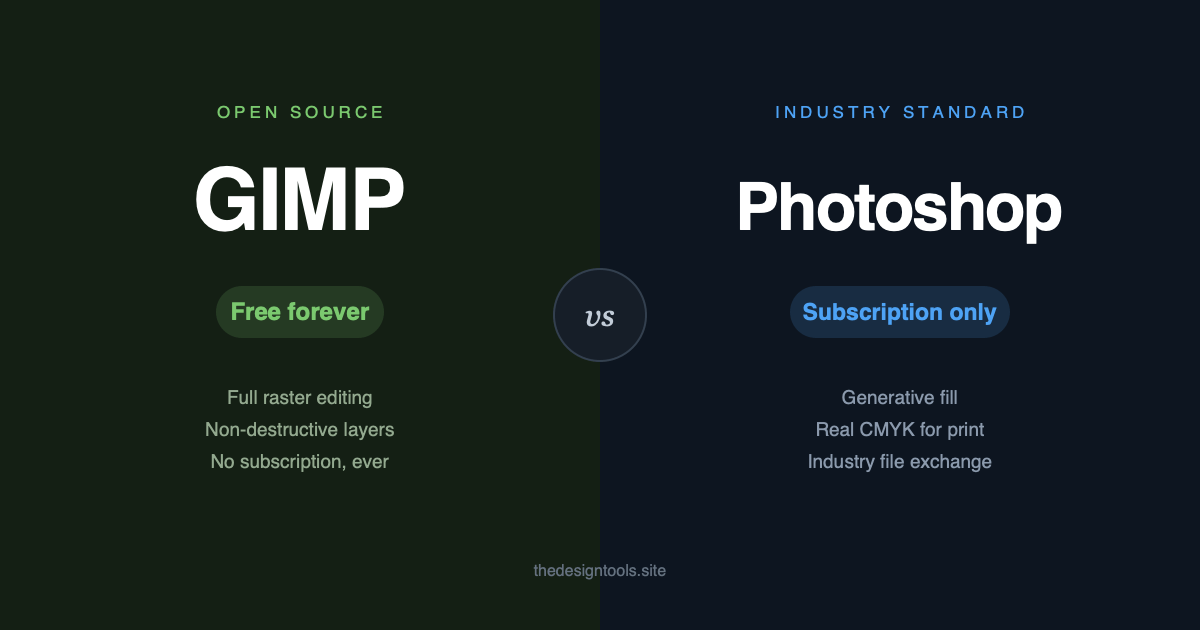
- Photoshop is still required for commercial print, for generative AI retouching, and for anyone who has to exchange working files with a studio.
What it costs
| GIMP | Photoshop | |
|---|---|---|
| Price | $0 | $22.99 / month, annual commitment |
| Month-to-month | — | $34.49 / month |
| Cheaper route | — | Photography plan, $19.99 / month (adds Lightroom + 1 TB) |
| Licence | Free software (GPL) | Subscription — access ends when you stop paying |
Over three years that is roughly $830 versus nothing. Worth saying plainly, because it is the entire reason this comparison keeps getting made.
What actually changed in GIMP 3
The headline feature is non-destructive editing. Filters now stay live — you can go back and adjust or switch one off instead of undoing twenty steps or committing to pixels the moment you hit apply. GIMP 3.2 extended this further.
Alongside it: a rebuilt interface that no longer feels like a museum piece, better colour space support including AdobeRGB, and wider file format handling.
This is a real shift. Non-destructive editing was the single biggest workflow gap for years, and it closing changes GIMP from “free but painful” to “free and workable.”
Where GIMP still loses
No native CMYK. This is the one that ends the conversation for print. GIMP has no proper CMYK working space, no spot colour channels, and no reliable soft-proofing. If you are sending files to a commercial printer — packaging, magazines, brochures — this is not a preference, it is a blocker. Workarounds exist; none of them are something you want in a paid job.
Non-destructive editing is shallower than it looks. Photoshop’s Smart Objects let you embed a whole file, re-open it, edit the original and have everything downstream update. GIMP’s version is more limited and does not persist across sessions in the same way. Close enough for many jobs; not the same system.
No generative fill. Removing a tourist from a photo or extending a background is a few seconds of work in Photoshop and a manual clone-stamping job in GIMP. If retouching is your day, this gap alone justifies the subscription.
PSD compatibility is approximate. GIMP opens PSDs, but layer effects, smart objects and adjustment layers do not survive intact. Fine for extracting assets, unreliable for collaborating.
Where GIMP is the better choice
Not a consolation prize — there are cases where it is simply the right call:
- Screen-only output. Everything is RGB. The CMYK problem does not exist for you.
- Occasional use. Paying monthly for software you open twice a month is a bad trade.
- Students and people starting out. The concepts transfer. Layers, masks and channels work the same way everywhere.
- You want to own your tools. No renewal, no licence server, no losing access to your own files because a card expired.
Worth knowing: it is not a two-horse race
If GIMP’s gaps matter but the subscription does not appeal, the interesting options are elsewhere. Krita is stronger than both for digital painting. Photopea runs in a browser and handles PSDs better than GIMP does. Affinity Photo is a one-time purchase with real CMYK — the closest thing to Photoshop without the recurring bill. For the full picture with every option’s drawback stated, see our GIMP alternatives and Photoshop alternatives guides.
“GIMP or Photoshop” is the question people ask. It is rarely the question they should be asking.
The bottom line
GIMP 3 is the first version that is straightforwardly good rather than good-for-free. For screen work it will do almost everything you need, and the money you keep is real.
But it is not a Photoshop replacement, and anyone telling you otherwise is skipping the CMYK question. If your work ends up on paper, or your retouching depends on generative fill, the subscription is buying you something specific — not just brand comfort.
Sources
- GIMP — official site and 3.x release notes
- Adobe Photoshop — official pricing, checked August 2026
- Photoshop — our hand-reviewed directory listing: real drawbacks, pricing and licence included
Banner produced in-house. Prices and feature gaps described were accurate in August 2026 — check the vendor pages before deciding.
Choose GIMP for screen-only work, occasional editing, learning, or if you want to own your tools without a subscription. Skip it for commercial print, generative-fill-heavy retouching, or studio collaboration where CMYK and dependable PSD exchange matter.
Keep reading
Frequently asked questions
Is GIMP really good enough to replace Photoshop?
GIMP is good enough for many screen-only jobs, including photo cleanup, compositing, textures, mockups, social assets, and UI graphics. It is not a full Photoshop replacement for commercial print, generative fill, or reliable studio collaboration.
What is the main disadvantage of GIMP compared with Photoshop?
GIMP has no proper CMYK working space, spot colour channels, or reliable soft-proofing, making it a blocker for commercial print. Its PSD compatibility is also approximate, and its non-destructive editing is more limited.
Is GIMP better than Photoshop for occasional use?
For occasional use, GIMP can be the better choice because it is free software and avoids paying monthly for an app opened only twice a month. The concepts still transfer, including layers, masks, and channels.
122 ready-to-use AI prompts — organised by discipline and category, each copyable in one click, free and no sign-up needed. Browse the prompt library →