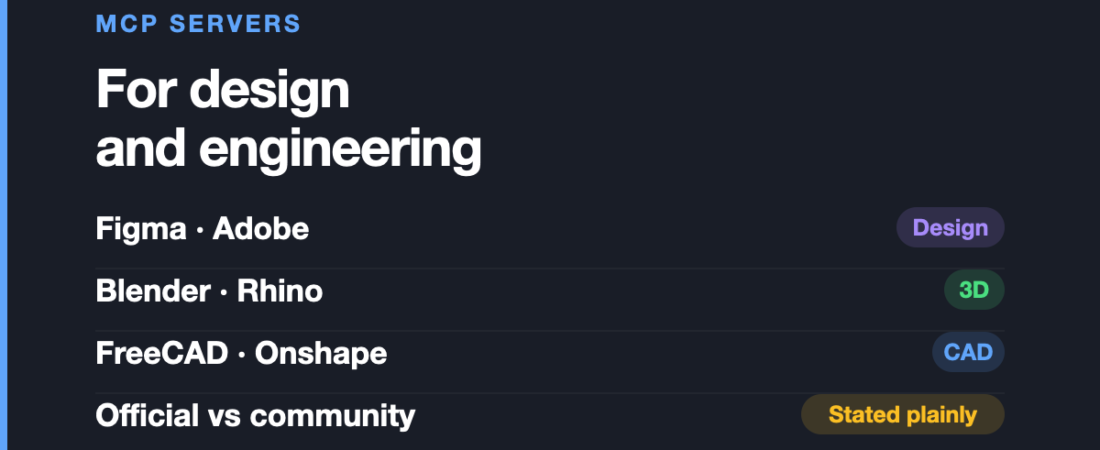
Every few weeks a new list of “MCP servers for designers” goes around. Most of them share the same problem: they treat every connector as if it were the same kind of thing. A connector built and maintained by Figma‘s own engineering team gets listed next to a weekend project by one person on GitHub, with the same confident tone and the same “just add this to your config” instructions.
Key takeaways
- Vendor-built MCP servers have clearer support, documentation, and roadmaps than community-maintained alternatives.
- Figma’s Dev Mode MCP server reads layout, variables, and components, but canvas writing remains in beta.
- Blender MCP is community-made, not an official Blender Foundation product, so studios should keep a manual fallback.
- Onshape Labs offers the strongest official CAD option, focused on FeatureScript authoring rather than general modelling.
- Powerful CAD connectors may execute generated code inside applications, making backups and repository checks essential.
That distinction matters more than any feature list. It decides whether the thing still works in six months, whether anyone fixes it when it breaks, and whether you should point it at a client file.
So this guide is sorted by who actually built it — not by how impressive the demo looks. We also cover the part almost every list skips: CAD and mechanical engineering. Industrial designers and mechanical engineers have real MCP options now, and the picture there is very different from the Figma-shaped one.
First, what an MCP server actually is
MCP stands for Model Context Protocol. In plain terms, it is a standard way to let an AI assistant talk to a piece of software you already use.
Without it, you copy something out of Figma, paste it into a chat window, and describe what you want. With it, the assistant can read the file directly — or in some cases, change it.
The important word is standard. Because every MCP server speaks the same protocol, one that works in Claude generally works in Cursor, VS Code, and other MCP-capable tools. You are not locking yourself into a single assistant.
Two things are worth knowing before you install anything:
- Most of these run on your own machine. They are not cloud services. They are small programs on your computer that the assistant is allowed to call.
- Many of them work by running code inside your design app. That is how they get so much power — and it is also the security trade-off we come back to at the end.
The three tiers, and why you should care
Here is the framework we use for everything below.
Tier 1 — Built by the vendor. The company that makes the software also makes the connector. There is a support channel, a documentation page, and a roadmap. If it breaks, someone is paid to fix it.
Tier 2 — Community, but established. Not official, but with a clear maintainer, real usage, and a visible history. Usable, with the understanding that it depends on volunteers.
Tier 3 — Community, and crowded. Several competing versions exist, none is canonical, and you have to pick one and hope. Common in CAD.
One correction while we are here, because it circulates a lot: Blender MCP is not official. It is a community plugin by Siddharth Ahuja, and its own documentation says it is not made or supported by the Blender Foundation. It is good software. It is not a vendor product, and you should plan accordingly.
Design tools: Figma, Adobe, Mobbin
Figma — Tier 1
Figma‘s Dev Mode MCP server is the strongest example of a vendor-built connector. It lets an assistant read your design context — layout, variables, components — instead of guessing from a screenshot.
It is generally available for reading. There is a remote version that needs nothing installed, and a local one that runs through the desktop app.
Where it falls short: the desktop server requires a Dev or Full seat on a paid plan, so it is not available to Starter users. Writing back to the canvas is still in beta and should not be pointed at production files yet. And reading design context is not the same as generating good code — it removes the guesswork, not the review.
Adobe — Tier 1, but read the label
Adobe has more than one thing called an MCP server, and they are not equivalent.
The main one is Adobe for Creativity, a remote connector that has been generally available in Claude since 28 April 2026, with 50+ tools spanning Photoshop, Lightroom, Firefly, Express, Premiere, and Adobe Stock.
Separately, Illustrator Beta ships a built-in MCP server — but only in the Beta build, not stable Illustrator.
Where it falls short: the remote connector is closer to Express-tier editing and Firefly generation than to full Photoshop scripting. If you were expecting an assistant that can drive advanced compositing, that is not what this is yet. And the Illustrator server being beta-only means production teams cannot rely on it. Community alternatives exist with far more tools, but you are then back in Tier 2 territory.
Mobbin — Tier 1
Mobbin’s official connector gives an assistant access to their library of real, shipped app screens. The pitch is straightforward and genuinely useful: instead of an AI inventing a plausible-looking checkout flow, it can reference patterns from products that actually shipped.
Where it falls short: MCP access sits behind a paid Mobbin plan. There is no free path here, which matters if you are evaluating it. It is also a reference tool, not a production tool — it informs what you make, it does not make it.
3D and industrial design: Blender and Rhino
Blender — Tier 2
Blender MCP is the connector most people have seen in demo videos. It creates and modifies objects from plain-English prompts, applies materials, sets up lighting and cameras, and can pull assets from Poly Haven.
It works with Claude, Cursor, and local models through Ollama, and needs Blender 3.0 or newer.
Where it falls short: as noted, it is not a Blender Foundation product. It is a community plugin with a small maintainer base. Blender’s Python API changes between major releases, and when it does, community add-ons break until a volunteer fixes them. For hobby and exploration work this is fine. For a studio with deadlines, have a manual fallback.
Rhino and Grasshopper — Tier 2
This is the one industrial designers and architects should look at, and it is badly under-covered.
Several RhinoMCP implementations exist, and one is listed on Food4Rhino, the official Rhino plugin marketplace — which is a meaningful signal even though the plugin itself is community-made. Between them they offer 30+ tools: geometry creation, layer management, document inspection, and Grasshopper definition building.
The interesting part is the Grasshopper side. Parametric definitions are exactly the kind of structured, fiddly work where describing intent in words genuinely beats wiring nodes by hand.
Where it falls short: the more capable versions work by generating and executing RhinoCommon C# code inside your session. That is powerful and it is exactly as risky as it sounds — see the security section. There is also no canonical implementation, so you are choosing between several similar projects with different levels of activity.
CAD and mechanical engineering: the part everyone skips
If you design physical products for a living, the design-tool lists above mostly do not apply to you. Here is what actually exists.
Onshape — Tier 1, and the surprise of this list
Onshape Labs ships a FeatureScript MCP server, and it is genuinely official. It lets engineers create custom Onshape features by describing them in natural language rather than writing FeatureScript by hand.
There are also connectors that wrap the Onshape REST API into a set of semantic tools, handling authentication, caching, and rate limits.
This is the strongest official story in CAD right now, and almost nobody writes about it.
Where it falls short: it is focused on FeatureScript authoring, not general modelling — it is a tool for people extending Onshape, more than for people using it casually. It is cloud-only by nature, so if your workflow is offline or your IP policy forbids cloud CAD, this is a non-starter. API rate limits are a real constraint on heavy use.
FreeCAD — Tier 3
FreeCAD has the most MCP implementations of any tool here, and that is precisely the problem. There are at least five actively published servers, and none of them is the official one, because there is no official one.
Between them, capabilities include geometry creation, boolean operations, document management, and running custom scripts. Some go further with containerised headless execution and vision-based analysis of the model.
Where it falls short: choosing is genuinely hard, and a wrong choice costs you an afternoon. Some are Node-based, some Python, with different setup paths and different prerequisites. FreeCAD’s own API has historically shifted between versions, so a server built against one release may not work on yours. Check the commit history before you commit your time — a repo that has not been touched in months is a warning, not a detail.
Fusion 360 — Tier 2, community only
Autodesk has not shipped an official Fusion 360 MCP server. What exists are community projects that let an assistant issue sketching, modelling, assembly, and export commands, generally by running Python through the Fusion API.
There is a thoughtful critique worth reading that argues Fusion MCP makes CAD faster without addressing the actual bottleneck in engineering work — which is usually decision-making and review, not the modelling itself. That is a fair point about all of these tools, not just Fusion.
Where it falls short: no vendor backing, and Autodesk’s API terms and release cadence are outside the maintainers’ control. Treat it as an experiment, not infrastructure.
The security part nobody puts in the listicle
This deserves its own section because it is the single most under-reported thing about design and CAD MCP servers.
Most of the powerful ones work by executing code inside your application — Python in Blender, Fusion, and FreeCAD; C# in Rhino. That is the mechanism that makes them impressive. It also means that when you connect one, you are allowing an AI assistant to run generated code against your files.
Three practical consequences:
- Save first, and version your work. An assistant that can create geometry can also delete it. Undo is not a backup strategy.
- Be careful with client and NDA work. Know whether a given server sends anything off your machine. Local servers generally do not, but “generally” is not a policy — check the specific project.
- Read the repo before you install it. For Tier 3 tools especially, you are installing code from a stranger that will run inside the app holding your work. Check the commit history, the issue tracker, and whether anyone else is actually using it.
None of this means avoid them. It means treat a Tier 3 CAD connector with the same caution you would treat any unknown plugin — because that is exactly what it is.
How to set one up
The pattern is similar across most of them:
- Install the host application and check the version requirement. Most CAD servers are picky about this.
- Install the prerequisites. Many use
uv(from Astral) for Python servers; others need Node 18+. - Add the server to your assistant’s config. In Claude Desktop this is
claude_desktop_config.json. Remote servers like Adobe’s and Mobbin’s skip this entirely — you authorise them in the app. - Restart the assistant, then confirm the tools appear before assuming it worked.
If a server does not show up, the cause is almost always a wrong path in the config or a version mismatch — not the assistant.
What to actually do with this
If you want the short version:
- UI and product design: start with Figma’s official server. It is the most mature thing on this list.
- Graphic and image work: Adobe’s remote connector is real and supported, but check it does what you need before rearranging your workflow around it.
- Industrial design: Rhino and Grasshopper is the most interesting option, with the caveat that it runs code.
- Mechanical engineering: Onshape has the only genuinely official CAD connector. If you are on Onshape already, it is the clear starting point.
- Free and open-source CAD: FreeCAD works, but budget time for picking an implementation.
This is the first article in a nine-part series covering MCP server support discipline by discipline. You can browse every tool mentioned here in the full directory.
And the general rule: the further down the tiers you go, the more you should verify before you rely on it.
Frequently asked questions
Do I need to be a developer to use an MCP server?
For the remote ones — Adobe’s and Mobbin’s — no. You authorise them in the app and they work. For local ones, you will need to edit a configuration file and use a terminal at least once. That is not programming, but it is not zero-friction either.
Are MCP servers free?
The community ones are free and open source. The official ones often are not: Figma’s desktop server needs a paid seat, and Mobbin’s MCP access requires a paid plan. The connector being free does not mean access to the underlying product is.
Does an MCP server work with assistants other than Claude?
Usually yes. That is the point of a shared protocol. Most of these work with Cursor, VS Code, and other MCP-capable clients, and several support local models through Ollama.
Is there an official Blender MCP server?
No. The widely used Blender MCP is a community plugin and is not made or supported by the Blender Foundation, despite frequently being described as official.
What about SolidWorks, SketchUp, or Revit?
Coverage is thin to nonexistent compared with the tools above. If your workflow depends on them, the honest answer today is that MCP is not yet a realistic part of it.
Sources and when we checked them
All claims verified in August 2026. Availability in this category changes quickly — particularly anything marked beta.
- Figma — Introducing our Dev Mode MCP server and the Figma MCP server developer docs
- Adobe — MCP server in Adobe Illustrator
- Mobbin MCP
- ahujasid/blender-mcp on GitHub — the community Blender plugin
- Onshape — How Onshape Labs FeatureScript MCP Server enables text-to-code-to-CAD
- RhinoAI / GrasshopperAI / RhinoMCP on Food4Rhino
- neka-nat/freecad-mcp and bonninr/freecad_mcp — two of several FreeCAD implementations
- Autodesk Fusion MCP: Faster CAD, Same Bottleneck — the critique referenced above
Start with the vendor-built option for your discipline: Figma for product design or Onshape for mechanical engineering. Skip community CAD connectors as production infrastructure unless you are prepared to inspect the code, manage version risk, and keep a manual fallback.
Keep reading
Frequently asked questions
What are the best MCP servers for design and engineering?
Figma is the strongest starting point for UI and product design, while Onshape has the only genuinely official CAD connector in this guide. Rhino and Grasshopper are particularly interesting for industrial design, but their capable versions run code inside your session.
Is there an official Blender MCP server?
No. The widely used Blender MCP is a community plugin by Siddharth Ahuja and is not made or supported by the Blender Foundation.
Are MCP servers safe for client or NDA work?
You should check whether the specific server sends anything off your machine before using it with sensitive work. Powerful servers can execute generated code against your files, so save first, version your work, and inspect the repository.
122 ready-to-use AI prompts — organised by discipline and category, each copyable in one click, free and no sign-up needed. Browse the prompt library →